
How to Customize the Book Leap Landing Page Header in Divi 5

Table of Contents
Why Header Customization Matters
Your website header is one of the first things visitors notice when they land on your website. It plays a major role in branding, navigation, and conversions. A professionally designed header can instantly improve user experience and help build trust with your audience.
The good news is that the Book Leap Landing Page layout makes this process incredibly easy inside Divi 5.
Whether you want to change your logo, update your navigation menu, or customize the call-to-action button, everything can be done visually without writing any code.
In this tutorial, we will walk through the complete process of customizing the Book Leap Landing Page header step by step so you can fully personalize the layout for your own business, book launch, coaching brand, agency, or digital product website.
What Is the Book Leap Landing Page Layout?
Book Leap is a modern and conversion-focused landing page layout designed specifically for creators, authors, coaches, educators, publishers, and businesses that want a professional online presence using Divi 5.
The layout includes:
- A professionally structured hero section
- Modern typography and spacing
- Conversion-focused call-to-action sections
- Responsive design for mobile and tablet
- Easy visual customization using Divi 5
- Clean header and navigation system
One of the best things about Book Leap is that the layout is designed for beginners and professionals alike. Even if you have never customized a Divi layout before, you can still modify the entire header section within minutes.
Getting Started With Divi 5
Before customizing the header, make sure the layout is already installed. If you have not set it up yet, follow our step-by-step guide to installing a Divi book landing page. Then log in to your WordPress dashboard and open the page or template that contains the Book Leap layout.
Then click on Edit With Divi to launch the Divi 5 Visual Builder.
Once the builder loads, you will be able to visually edit every part of the page directly on the front end.
For a smoother workflow, it is highly recommended to open the Layers Panel from the left side of the builder interface.
This makes it easier to identify the structure of the layout and quickly access different modules inside the header area.
Inside the Layers Panel, you will find a section called Header Plus Hero. Within that section, there is a row named Header which contains the full header structure.
The layout is divided into three columns:
- Left column for the logo
- Middle column for the navigation menu
- Right column for the call-to-action button
Now let’s customize each section one by one.
How to Change the Website Logo
The logo section uses an Image Module. When you click on the logo area, the module settings will open on the right side.
Under the Content tab, you will see the existing logo image already uploaded into the module.
Method 1: Upload Your Own Logo
The simplest way to customize the header logo is by replacing the existing image with your own logo file.
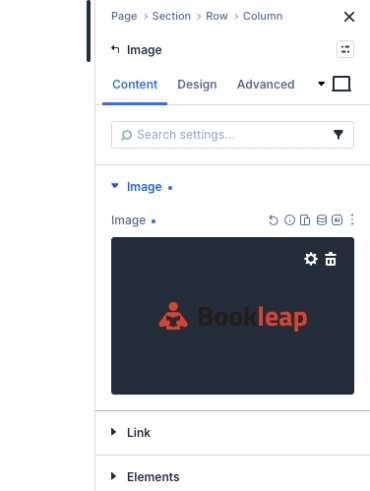
This method works perfectly if you want quick customization and direct control over the logo image.
Simply upload your logo and save the changes.
Your brand identity will instantly appear in the header area.
Method 2: Use Dynamic Content for the Site Logo
Divi 5 also includes a much smarter and more scalable approach using Dynamic Content.
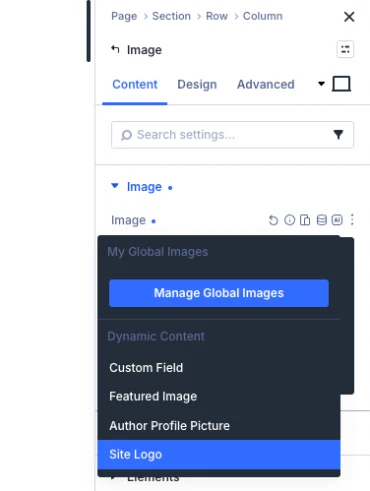
Instead of manually uploading the logo into the Image Module, you can click Insert Dynamic Content and select Site Logo.
This allows the header logo to automatically pull your official website logo directly from WordPress settings.
This approach provides several major advantages:
- Centralized logo management
- Faster future updates
- Better consistency across the website
- No need to manually replace logos in multiple locations
Whenever you update your site logo globally in WordPress, the Book Leap header updates automatically as well.
This is one of the most useful workflow improvements available in Divi 5.
How to Customize the Navigation Menu
The middle section of the header contains the Menu Module.
To edit it, simply click the menu area and open the module settings.
Under the Content tab, expand the Menu option. From there, you can select which WordPress menu should appear inside the header.
If you already created a menu in WordPress, you can simply choose it from the dropdown list.
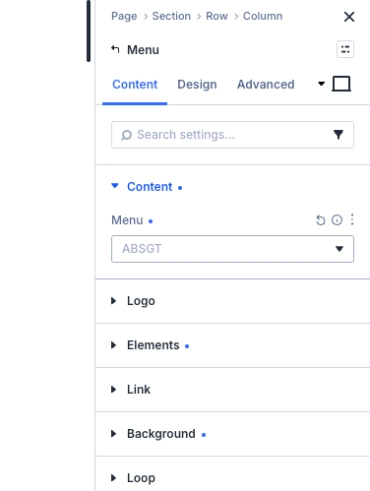
If you have not created one yet, go to:
WordPress Dashboard → Appearance → Menus
From there you can:
- Create a new menu
- Add pages
- Add custom links
- Organize menu order
- Assign menu locations
After creating the menu, return to Divi 5 and assign it to the Menu Module.
Important Header Design Tip
Since the Book Leap header contains:
- A logo on the left
- Navigation in the middle
- CTA button on the right
…the navigation area has limited horizontal space.
For the cleanest design, it is recommended to keep the menu simple and avoid adding too many items. Ideally, try using no more than six or seven menu links.
This helps maintain:
- Better readability
- Balanced spacing
- Professional appearance
- Improved mobile responsiveness
An overcrowded menu can make the header look cluttered, especially on tablets and smaller devices.
Responsive Editing in Divi 5
Another powerful feature of Divi 5 is responsive editing.
You can customize the appearance of your header separately for:
- Desktop
- Tablet
- Mobile
This means you can optimize spacing, alignment, font sizes, and menu layouts specifically for smaller devices.
Responsive editing helps ensure the Book Leap layout looks polished on every screen size.
How to Customize the Header Button
The third column of the header contains a Button Module.
This is where you can customize your main call-to-action button.
Open the Button Module settings and go to the Content tab.
From there, you can edit:
- Button text
- Button URL
- Link destination
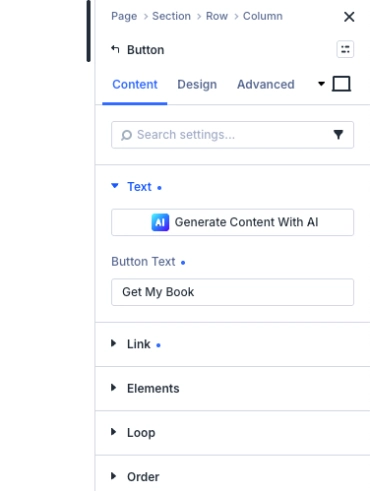
You can use CTA text like:
- Get Started
- Buy Now
- Contact Us
- Schedule a Call
- Download the Book
- Join Today
The button can link to:
- Pricing sections
- Checkout pages
- Contact forms
- External websites
- Product pages
- Booking systems
This flexibility allows you to tailor the Book Leap layout specifically for your marketing goals.
Styling the Button for Your Brand
Divi 5 also provides full design customization options for buttons.
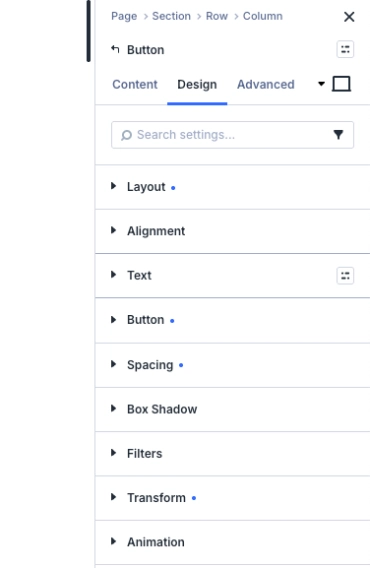
Inside the Design tab, you can control:
- Colors
- Typography
- Padding and spacing
- Border radius
- Hover effects
- Shadows
- Animation styles
This makes it easy to match the button style with your brand identity and overall website design.
A well-designed CTA button can significantly improve conversions and user engagement.
Why the Book Leap Layout Is Great for Marketing
The Book Leap Landing Page is not just visually attractive — it is designed with conversion and usability in mind.
The layout structure helps businesses and creators:
- Build trust quickly
- Present offers professionally
- Improve user navigation
- Increase click-through rates
- Guide visitors toward conversion actions
Because the entire design is built inside Divi 5, customization is extremely beginner-friendly.
You do not need coding knowledge to create a professional-looking landing page.
Final Thoughts
Customizing the Book Leap Landing Page header in Divi 5 is incredibly simple once you understand the structure of the layout.
Using the Visual Builder and Layers Panel, you can quickly customize:
- Your website logo
- Navigation menu
- Header button
- Colors and branding
- Responsive settings
All without touching a single line of code.
If you are looking for a modern, professional, and conversion-focused Divi 5 landing page layout that is easy to customize, Book Leap Landing Page
is an excellent choice.
It gives you the flexibility to fully personalize your website while saving hours of design and development time.
Whether you are building a book promotion website, digital product landing page, coaching brand, or business website, Book Leap provides a polished foundation that helps your website look professional from day one.
About the Author

MD Nurullah
MD Nurullah is a web developer and content creator at DiviFlow, focused on building modern websites and creating helpful resources for the WordPress community.